Manage users and groups
Managing users and groups includes tasks such as editing profiles, updating permissions, and removing access when no longer needed.
Below are some of the most common management tasks.
User management
The Users menu allows you to view and manage all user accounts on
the site.
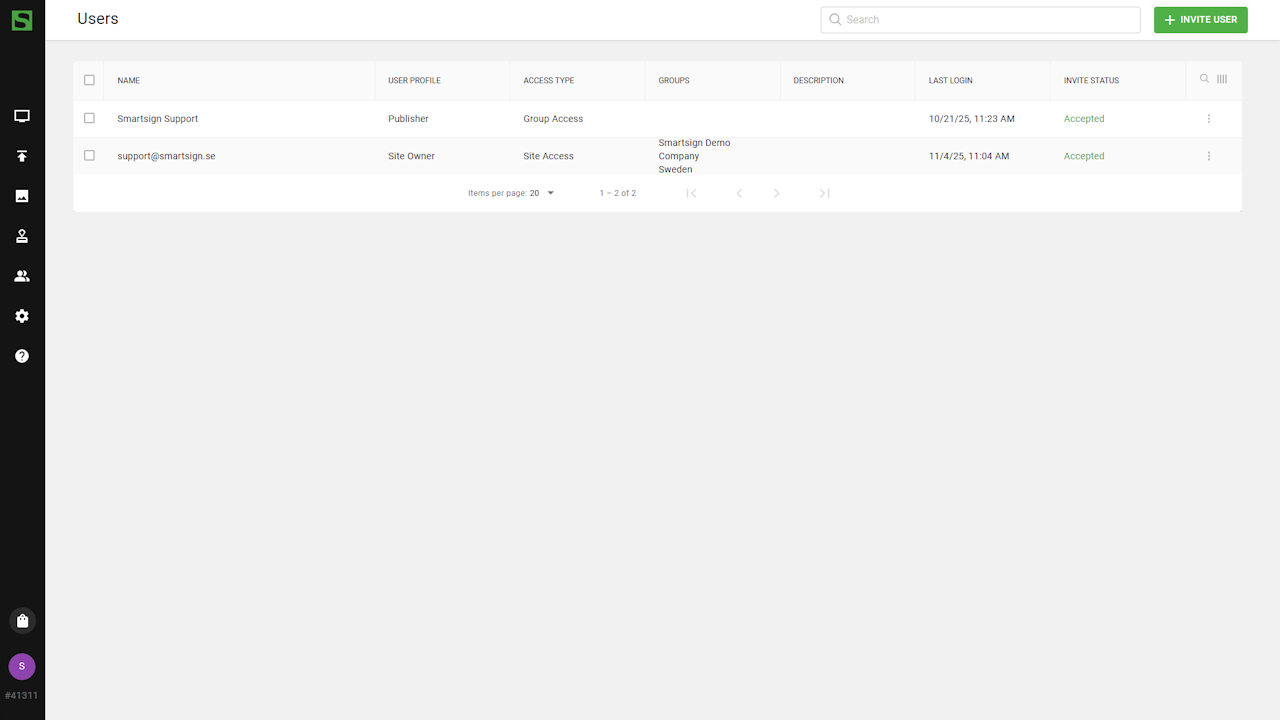 From here, administrators can resend invitations to users who haven’t
registered yet, edit user details, or remove users who are no longer
active.
From here, administrators can resend invitations to users who haven’t
registered yet, edit user details, or remove users who are no longer
active.
Removing a user
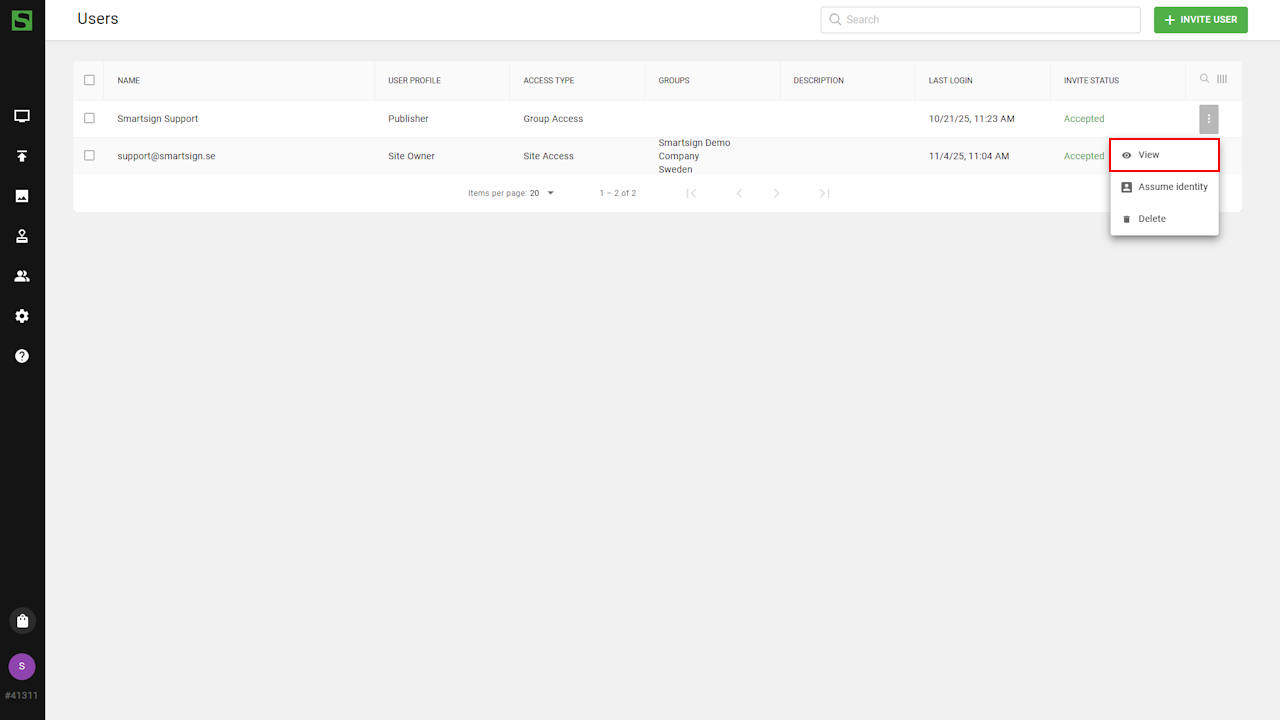
A user can be removed from the site directly from the Users menu.
- Open the options menu for the user and select Delete.
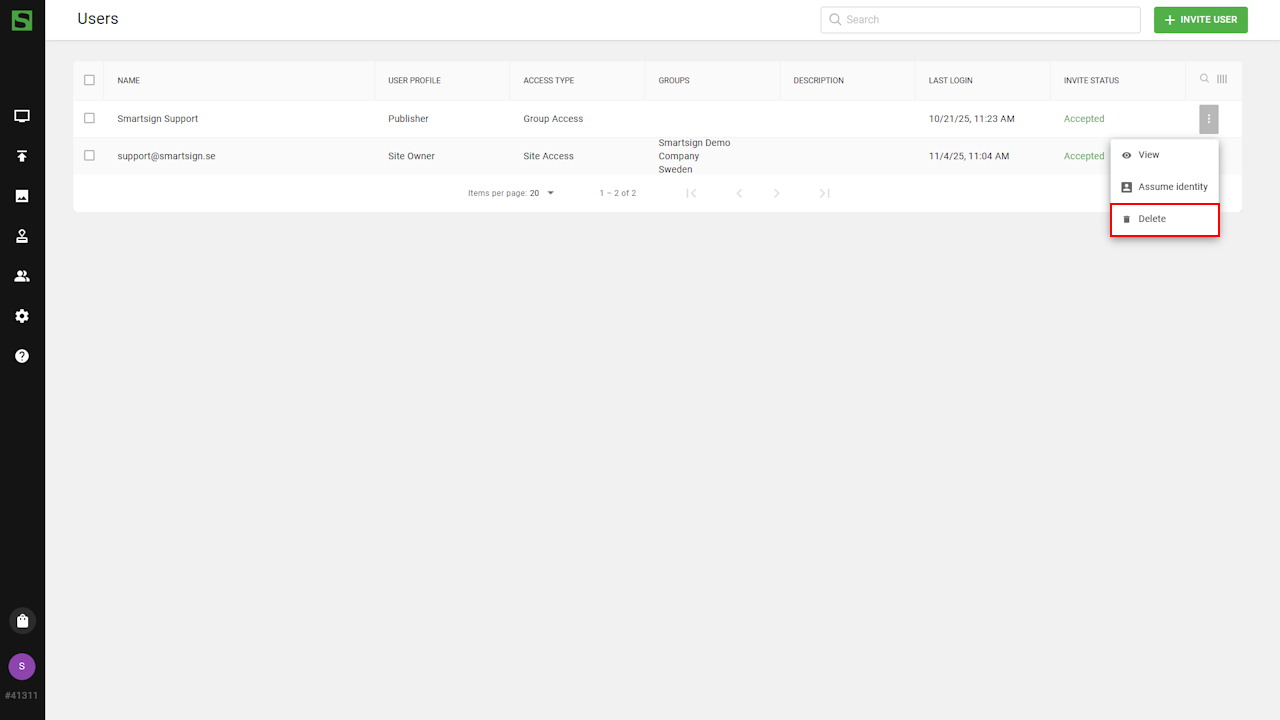
- To remove multiple users at once, use the checkboxes on the left.
Removing a user will not delete their Smartsign account — it only removes their access to the specific site.
Assume identity
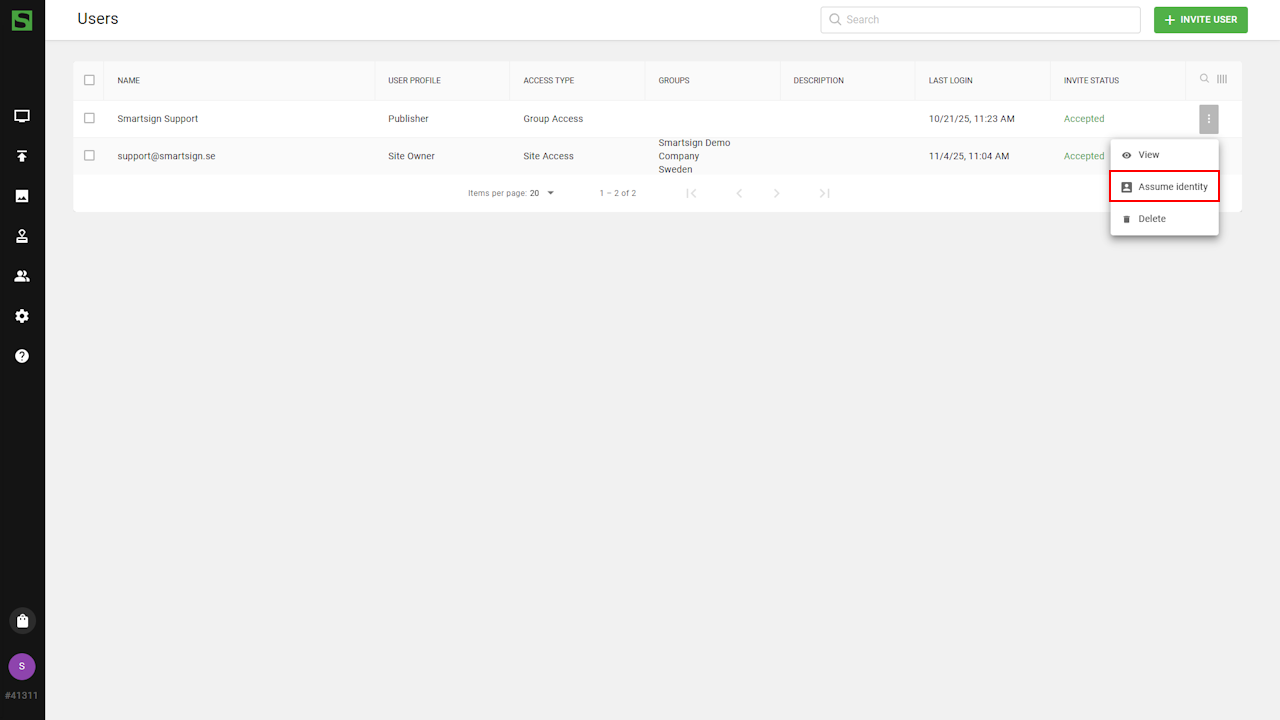
Assume Identity allows administrators to temporarily log in as
another user. This is useful for reviewing user permissions or
troubleshooting access issues.
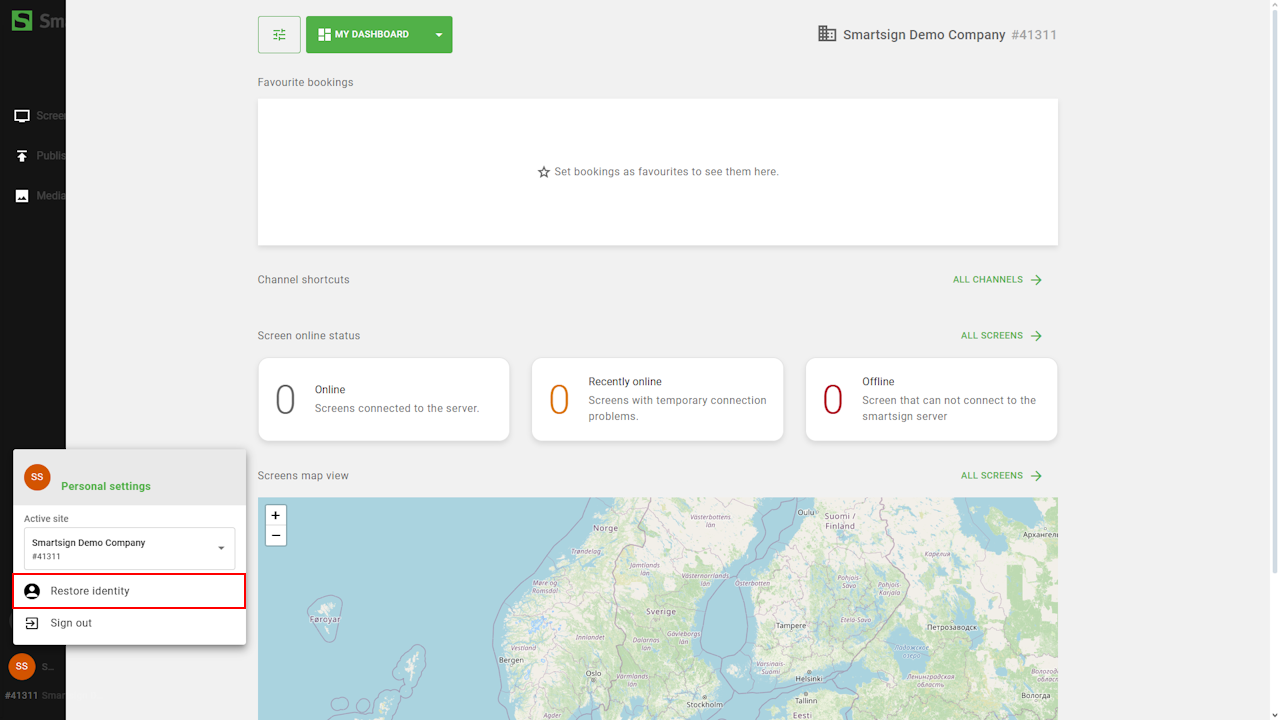
When assuming a user, you will see the interface exactly as that user
does.
- Assume identity can be used from the options menu in user list.
- Use the User Menu to revert back to your own profile when done.
Edit users
- Click on a user or select View from the options menu.
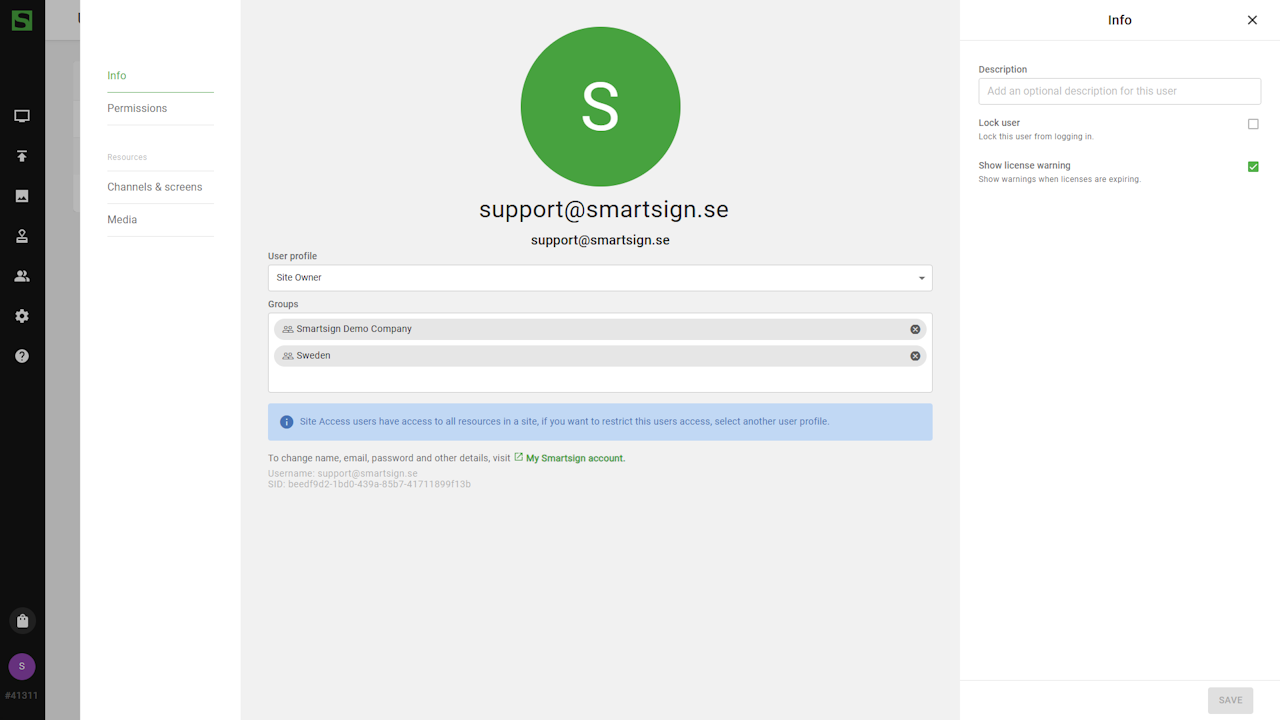
- From the user details view, you can:
- Change user profile (Site Owner, Group Admin, Publisher).
- View group membership and permissions.
- Adjust individual access to channels, screens and media.
Group management
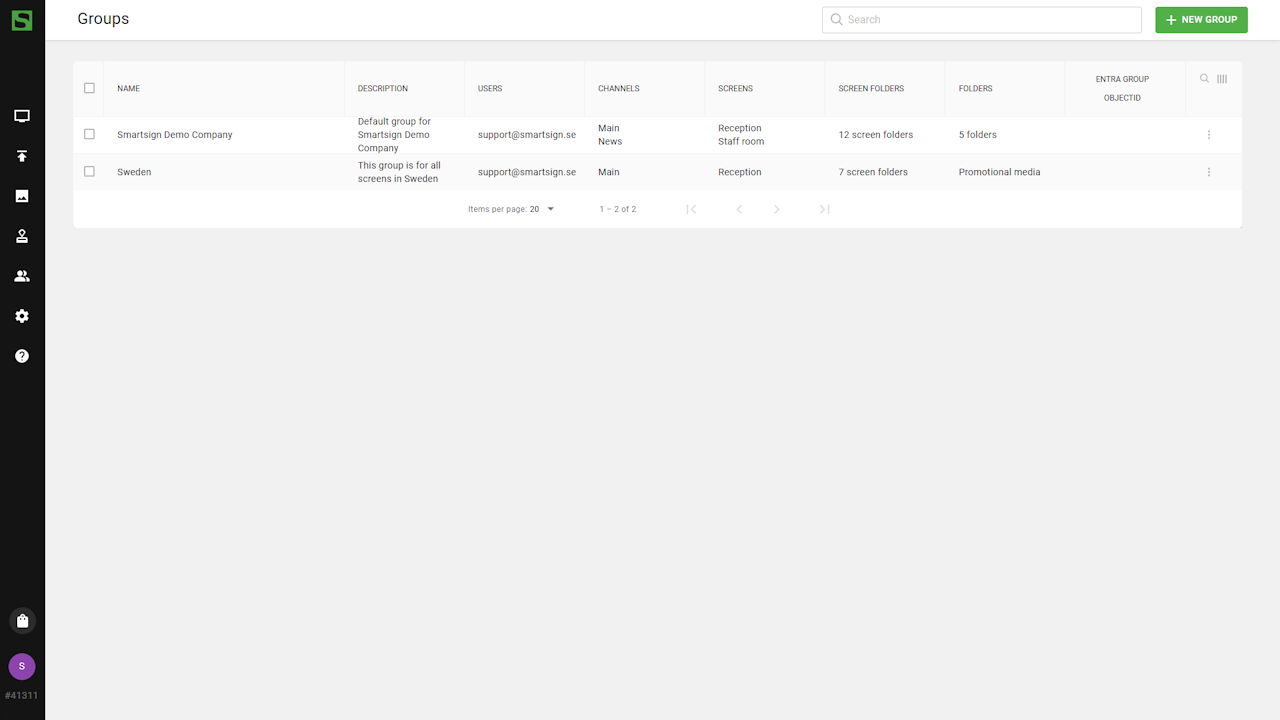
The Groups menu allows administrators to view, edit, and organize user groups.
Edit group settings
Editing a group allows you to update its name, description, members, or assigned resources.
- Go to Groups.
- Open the options menu for the group you want to modify and
select view.
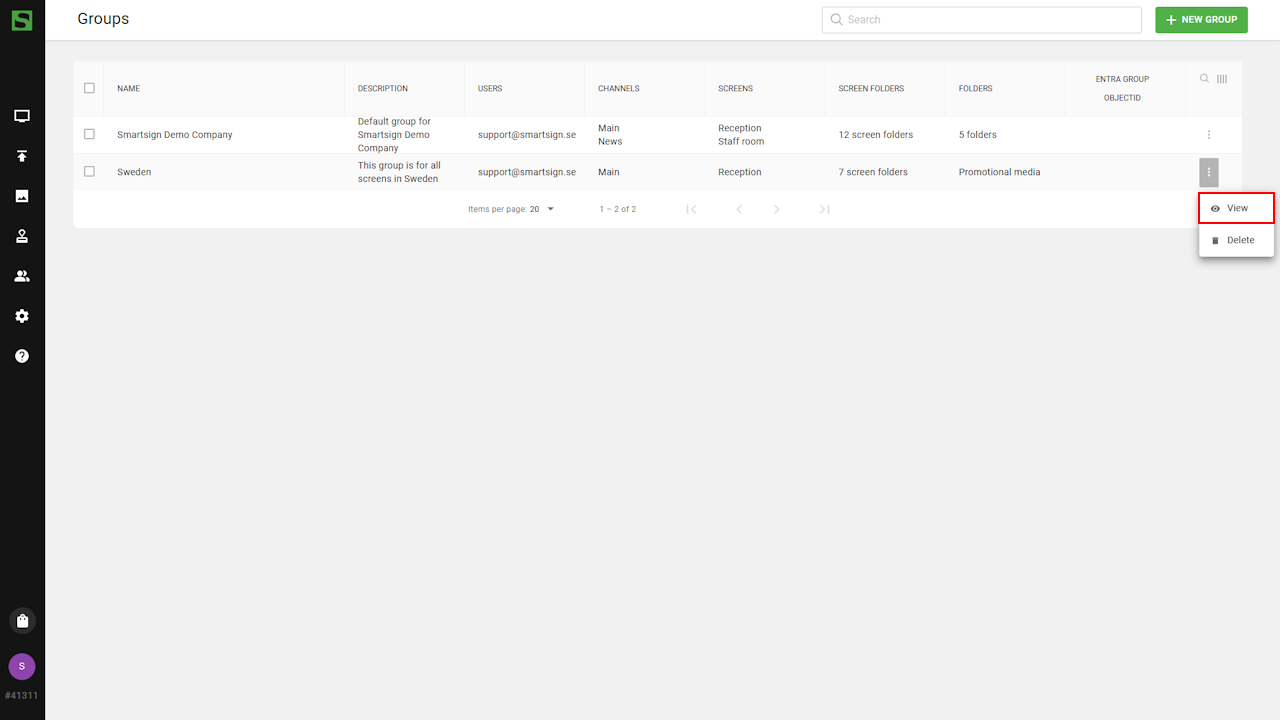
- Update the group name or description as needed.
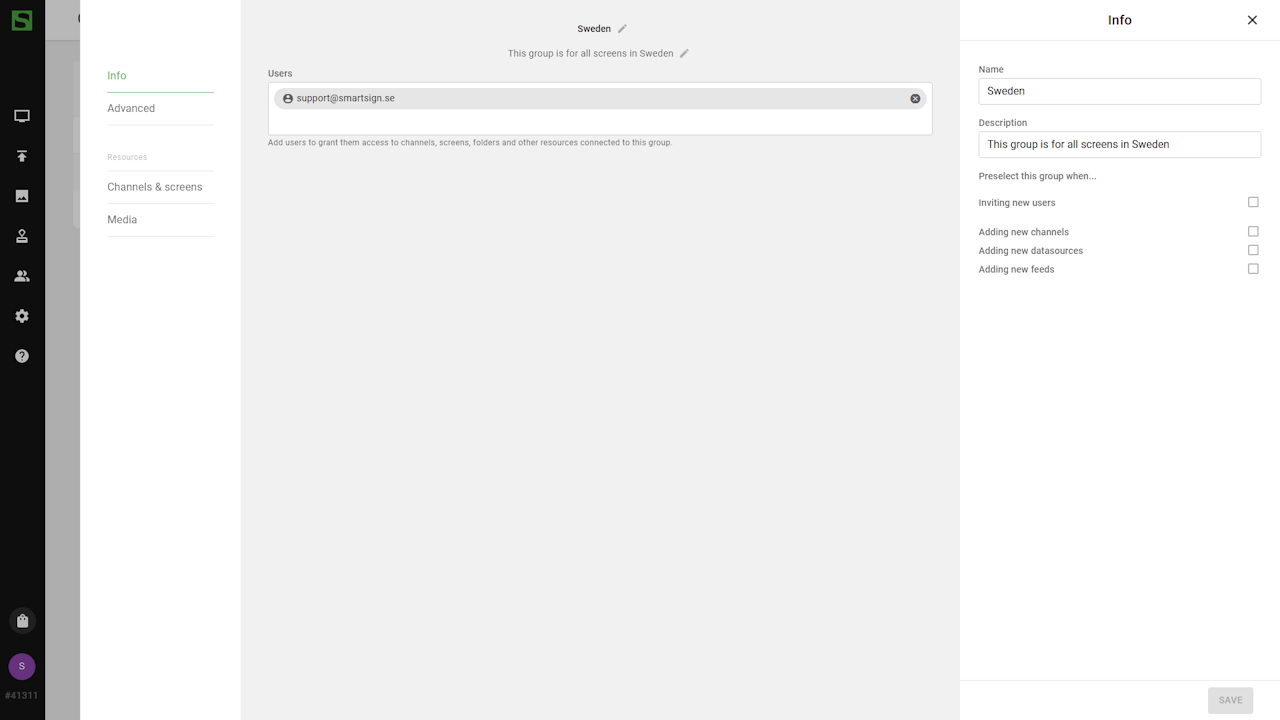
- Review and adjust assigned channels, screens, or media folders.
- Click Save to apply your changes.
Add or remove users
You can easily manage group membership to reflect organizational changes.
- Open the group you want to manage.
- Click in user box to include additional users, or use the remove
button to revoke access.
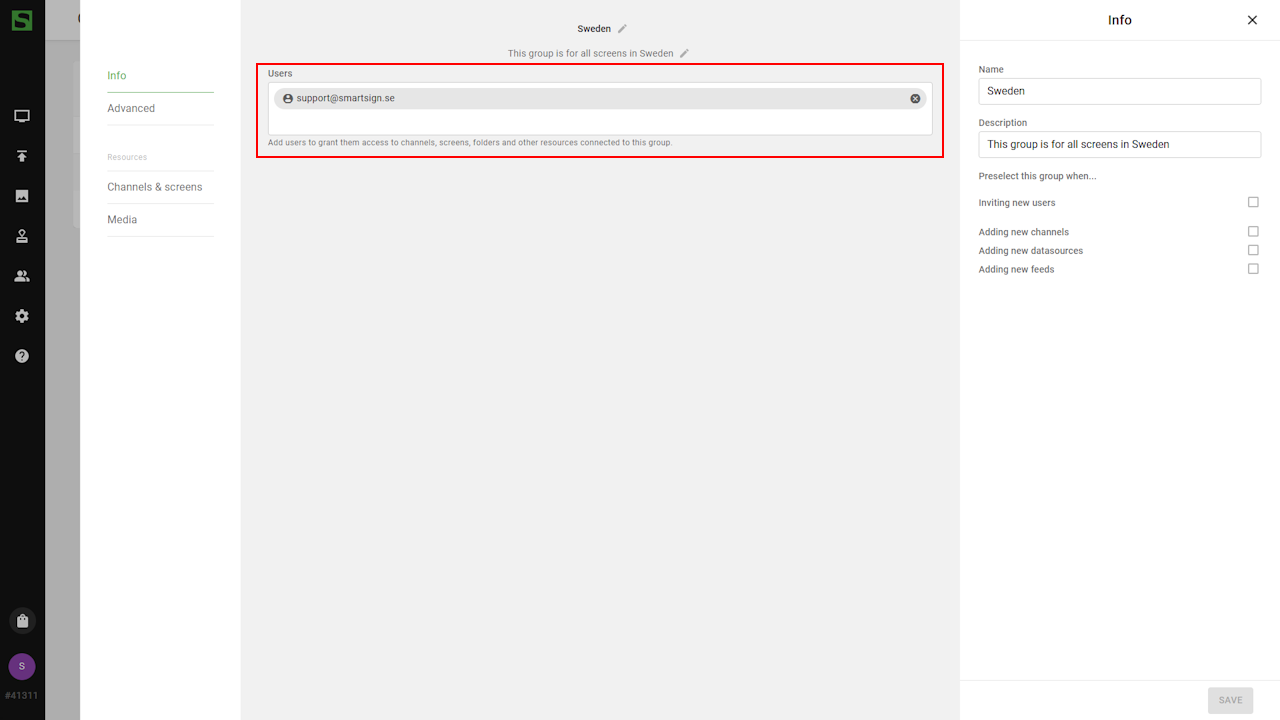
- Once a user is removed from a group, they immediately lose access to that group’s assigned resources.
Only Group Access user types are affected by group permissions. Site Owners have access beyond group-level restrictions.
Adjust group permissions
Each group can have its own access permissions for specific resources such as screens, channels, and media folders.
- Within the group view, open the Channels & Screens or
Media tab.
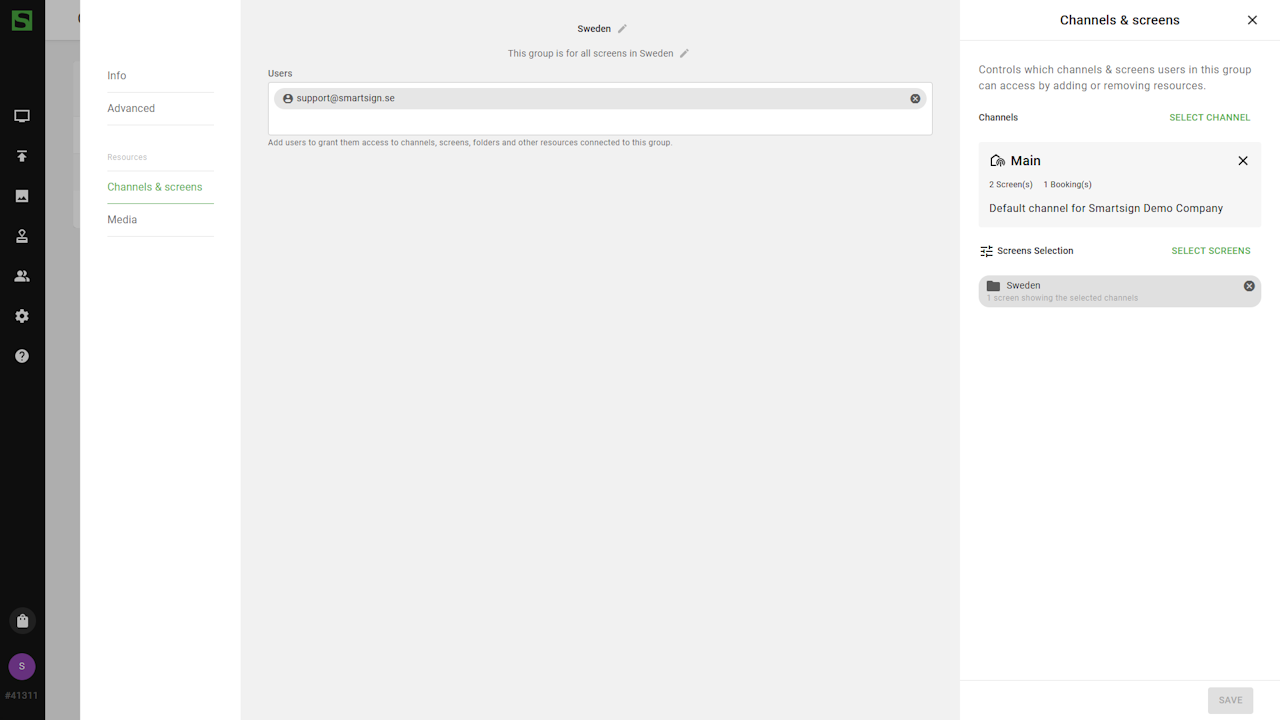
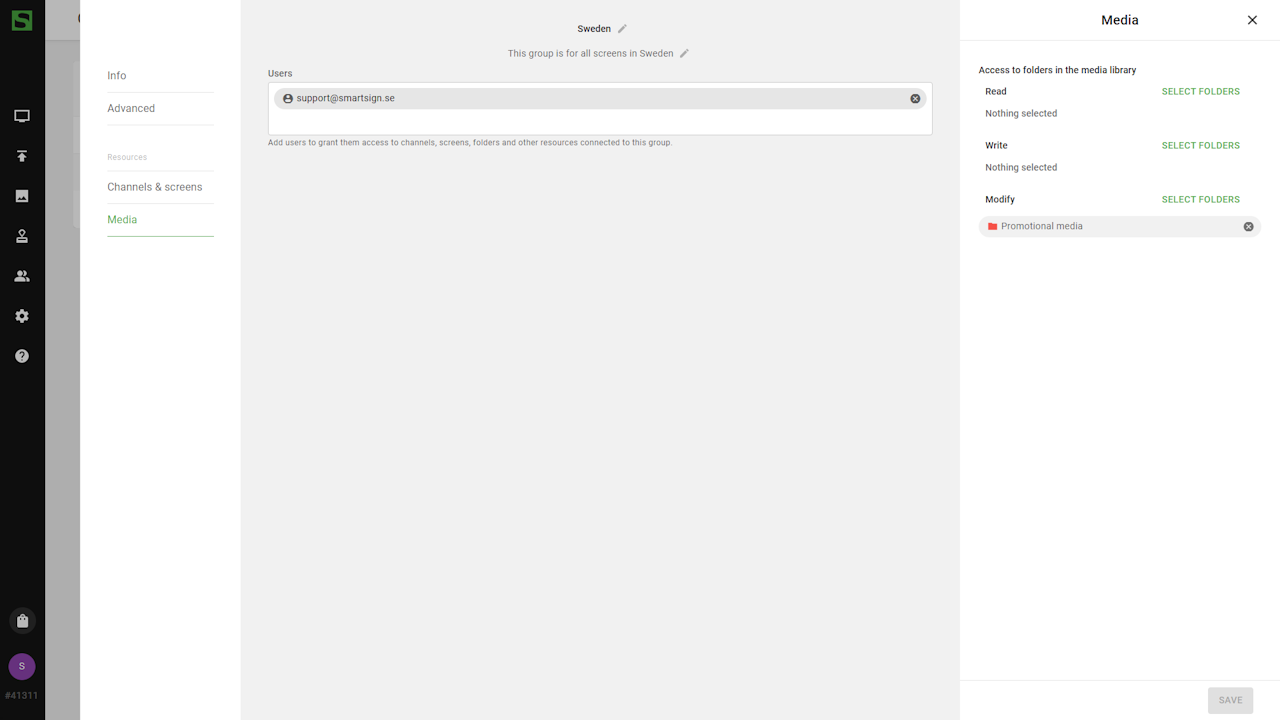
- Review which resources the group currently has access to.
- Manage access by adding or removing items.
Save your changes to update group settings.
Remove a group
When a group is no longer needed, it can be removed from the site.
- Open the Groups menu.
- Select the group to remove and choose Delete from the options menu.
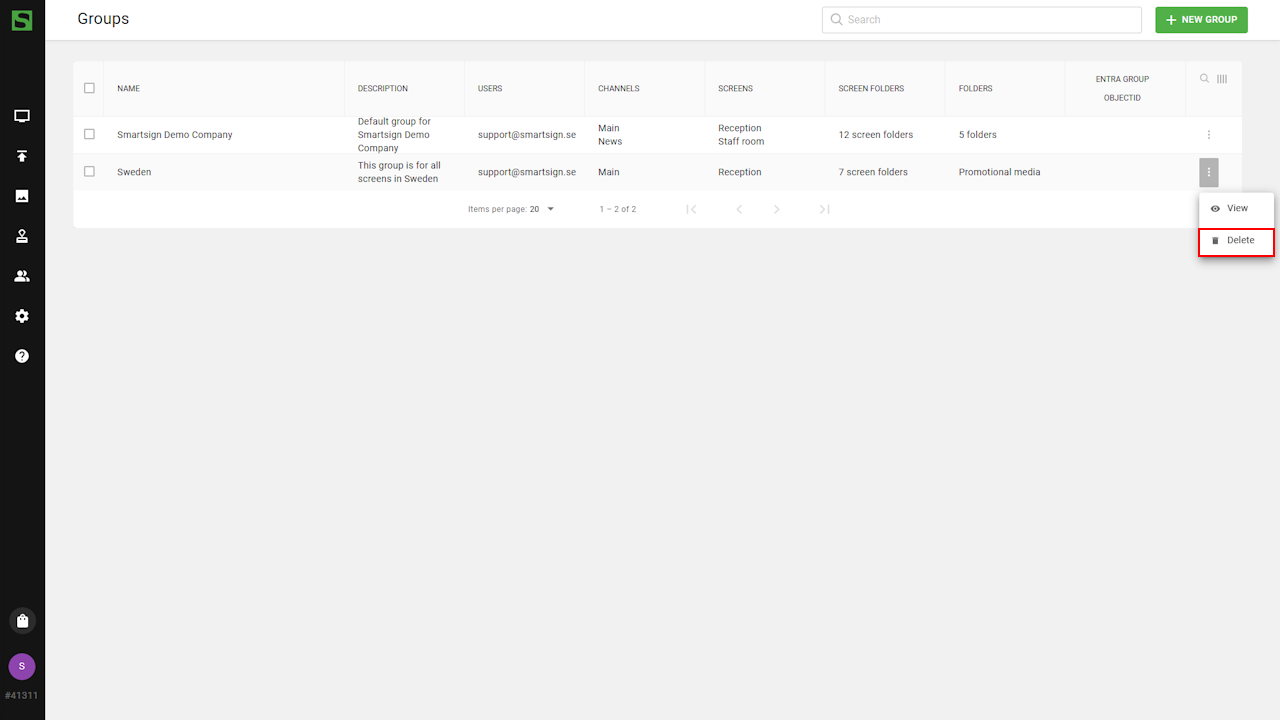
- Confirm the action to complete the removal.
Deleting a group will remove all assigned permissions from its members. The users themselves will remain in the system but lose access to any resources previously linked to that group.